
 Products
 Products
 Support
 Support


 中文
中文 Eng
Eng

 2019-04-25
 Product Upgrade
To facilitate your reading, we have edited this tutorial as a PDF file, and you can click here directly.
1. Installation of MetaMorph
After the MetaMorph is installed, a folder named "MetaXpress 6" will be generated on the desktop. Open the folder to see the icons for the “Meta Imaging Series Administrator” application and the “MetaXpress” application.
.jpg)
.jpg)
2. Configuration of Tucsen camera
1) Download the camera driver TUCam Camera Driver.exe and install it, to generate CameraLink related plug-ins in the file folder of C:\WINDOWS\system32.
2) Download the MetaMorph Plugin, copy the folder “TucsenDhyanaDriver” to the file folder C:\MX6\vinput.
.jpg)
3) Copy the file “TUCam.dll” to the file folder C:\WINDOWS\system32.
.jpg)
3. Configure the Tucsen camera driver under MetaMorph
1) Double click and open the “Meta Image Series Administrator” progress
.jpg)
2) Click the button “Configure Hardware”.
.jpg)
.jpg)
3) Click the button “Configure Acquisition”.
.jpg)
4) Select the driver “TucsenDhyana Camera Driver” in the left window and then click “Add>>”.
.jpg)
5) Select the driver “TucsenDhyana Camera Driver” in the right window and then click the button “Configure...”.
.jpg)
6) Set the parameters of the Tucsen camera as needed.
.jpg)
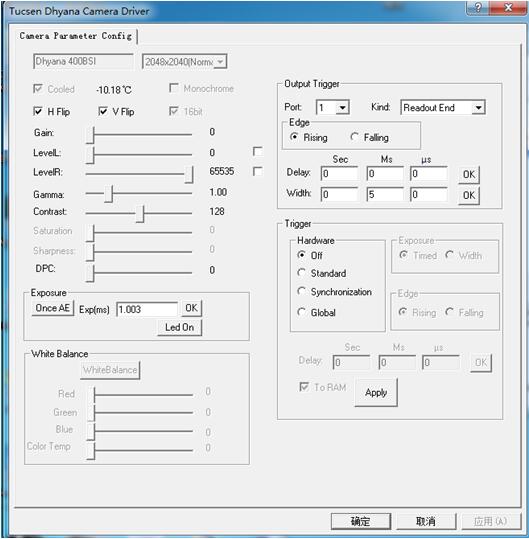
7) Click the "OK" button repeatedly to exit the configuration window and “Meta Imaging Series Administrator” software.
4. Start MetaMorph
.jpg)
.jpg)
1) Select "Select Camera/Board..." from the Acquire menu.
.jpg)
2) Select the “Tucsen Dhyana Camera Driver”in the drop-down list box.
.jpg)
.jpg)
3) Select "Acquire..." from the Acquire menu.
.jpg)
.jpg)
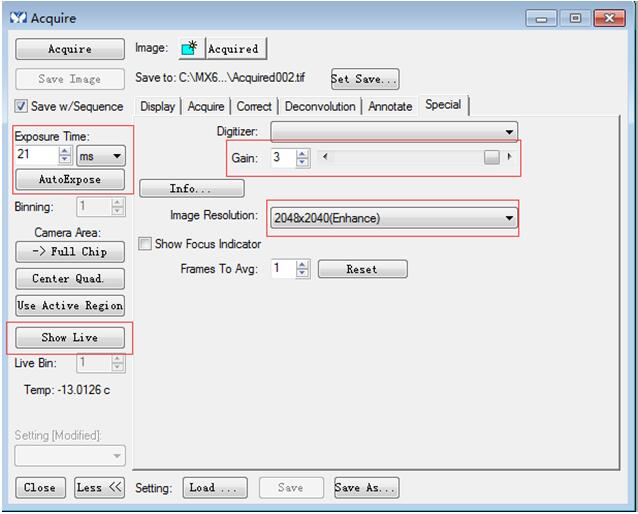
4) Select the “Special”and click the “Show Live” button to bring up the image preview window.
.jpg)
5) In the preview process, camera parameterscan be adjusted, such as Exposure time, Gain, Resolution, displayed temperature and displayed camera frame rate.
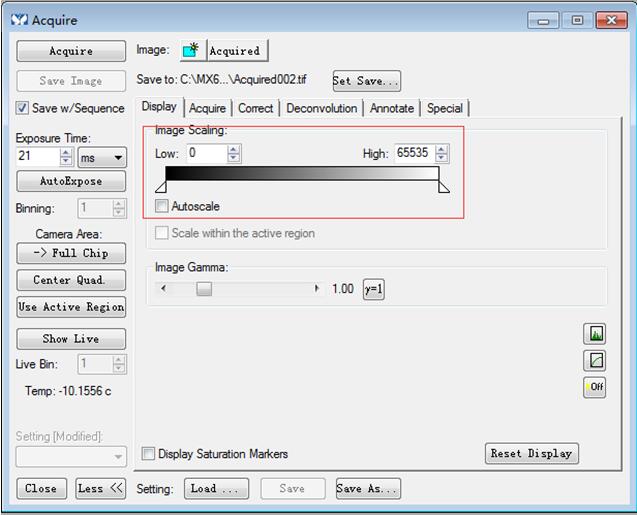
6) If the preview Image is not normal, check whether the parameters of Image Scaling in the "Display" are as shown below.
5. Notes
1) The Tucsen camera driver only supports the Windows 7/8/10 operating system;
2) Tucsen camera driver does not support hot plugging. Connect the camera and then start MetaMorph, stop previewing before unplugging the camera;
3) When the computer is connected to a different type of Tucsen camera, repeat step 3 once;
4) The generated camera configuration file is in the C:\MX6 directory, and the plugin configuration file is in the C:\MX6\vinput\TucsenDhyanaDriver directory;
5) Currently we only have 64-bit software, so only compile x64 plug-ins.Test version MetaXpress (64-bit) Version 6.0.0.1648 April 09.2015, drive Sentinel Protection Installer 7.6.1.msi;
6) Enlarging the software preview window will cause the frame rate to drop, which will not reach the maximum frame rate of the camera.This can be achieved by shrinking the window or reducing the resolution.